
You'd think uploading a video would be simple. It's not. Every platform has its quirks, every file format has its limits, and every upload can either look brilliant or like it was filmed on a potato. When you're dealing with user-generated content from events, where attendees are capturing authentic moments on their phones, getting those videos uploaded and shared properly matters. Here's what you actually need to know.
Why Video Upload Quality Matters
The quality of your upload directly affects how people experience your content. A poorly uploaded video doesn't just look bad, it performs worse. Social platforms actively penalize low-quality uploads in their algorithms. Your authentic event moments deserve better than pixelated playback.
When attendees upload a short video from your event, they're sharing something genuine. That authenticity is your asset. Mess up the upload process and you've lost what made it valuable in the first place.
The good news? Most upload issues come down to three things: format, settings, and workflow. Fix those and you're sorted.
Getting Your Format Right
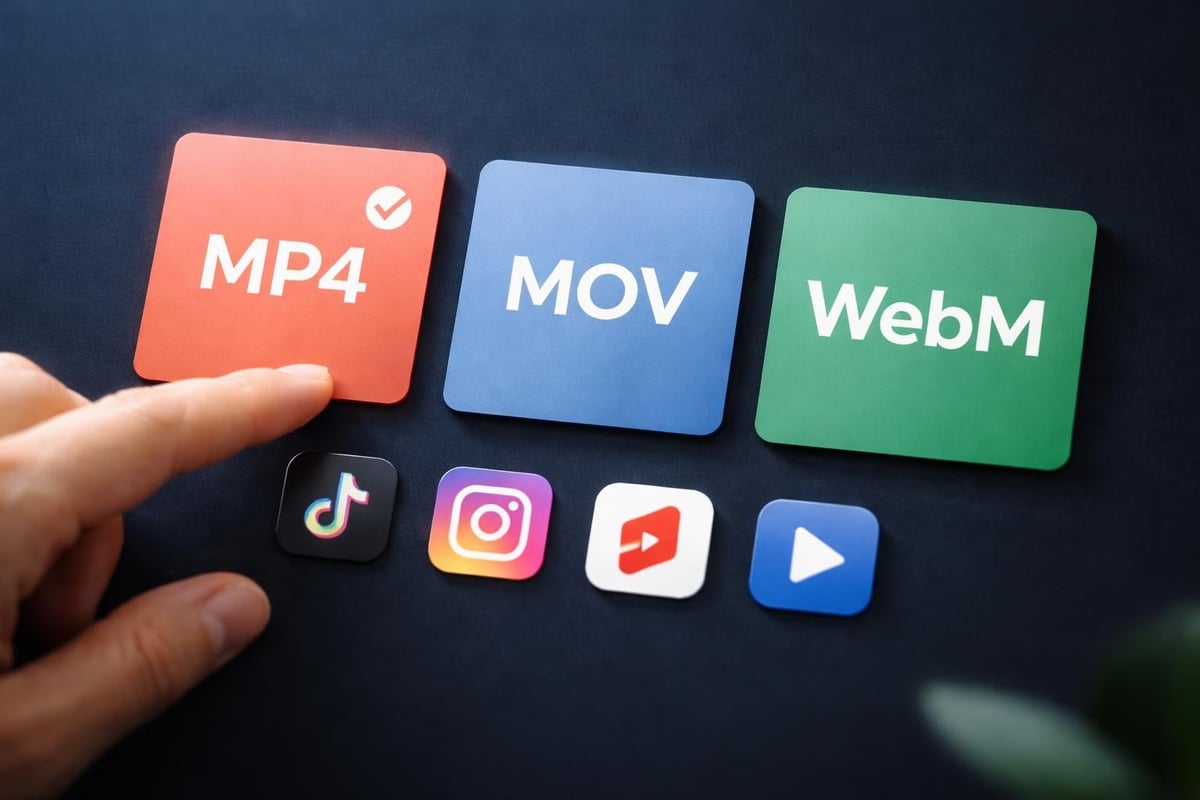
Not all video formats are created equal. MP4 with H.264 encoding is your safe bet for nearly everything. It's widely supported, relatively small in file size, and maintains decent quality.
Here's what works:
- MP4 (H.264): Universal compatibility, good compression
- MOV: Apple-friendly, larger files
- WebM: Web-optimized, growing support
Avoid proprietary formats. They'll either fail to upload or get transcoded badly by the platform, which defeats the purpose of starting with good footage.
Resolution and Aspect Ratio
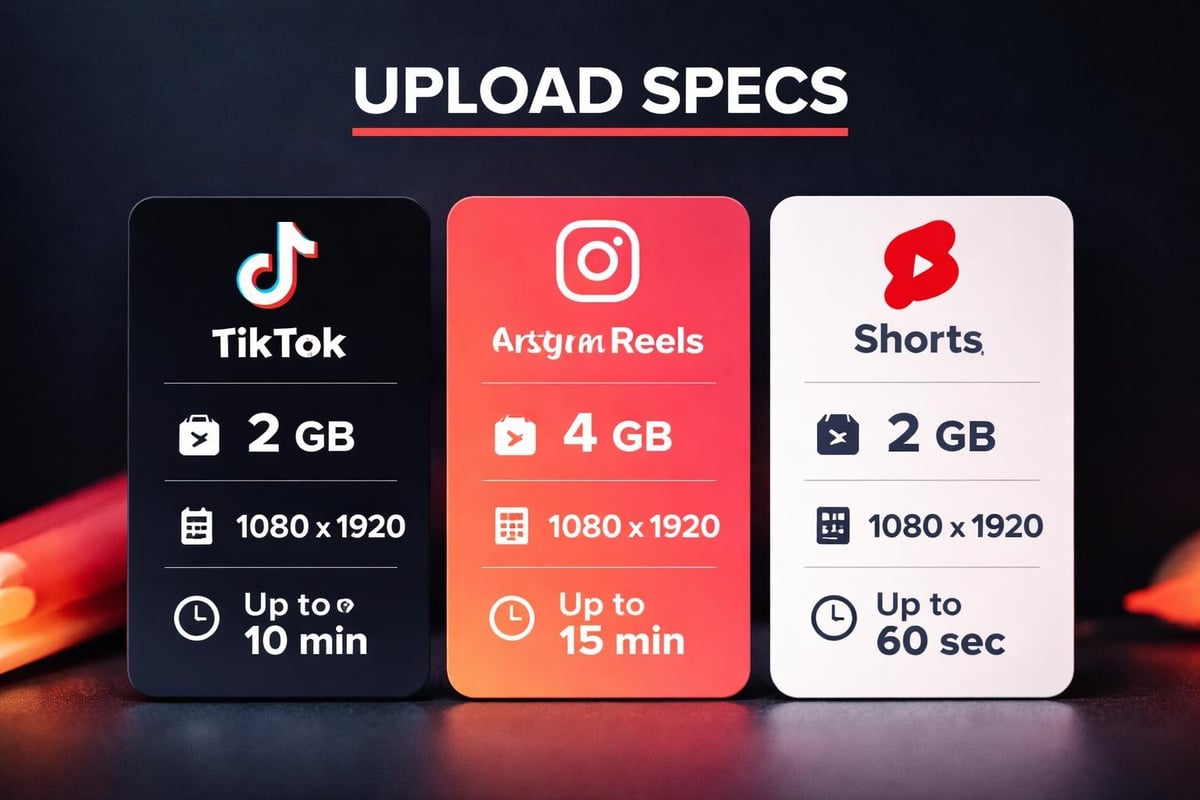
Short-form video lives in vertical format. 9:16 aspect ratio is standard. That's 1080x1920 pixels for most platforms.
If you're pulling in user-generated content from events, you'll get a mix of formats. Some people still film horizontal. Some film square. Your workflow needs to handle that.
| Platform | Optimal Resolution | Aspect Ratio | Max Length |
|---|---|---|---|
| TikTok | 1080x1920 | 9:16 | 10 min |
| Instagram Reels | 1080x1920 | 9:16 | 90 sec |
| YouTube Shorts | 1080x1920 | 9:16 | 60 sec |
| Facebook Reels | 1080x1920 | 9:16 | 90 sec |
These specs matter because platforms will crop or compress videos that don't match. That means losing parts of your frame or getting a quality downgrade you didn't ask for.
Technical Settings That Actually Matter
Bitrate determines how much data your video uses per second. Higher bitrate means better quality but larger files. For short videos, aim for 5-8 Mbps for 1080p footage.
Frame rate should match what you filmed. Most phones shoot at 30fps. Don't convert to 60fps if you didn't film it that way. It won't magically improve quality and might cause issues on some platforms.
Audio bitrate gets overlooked. Use 128-256 kbps AAC encoding. Event videos often have crowd noise, music, and speech. You need enough bitrate to keep it clear without bloating your file.
The balance between quality and file size matters more when you're dealing with multiple uploads. If attendees are submitting dozens of clips through your platform, keeping files manageable speeds up the entire workflow.
Platform-Specific Upload Tips
Each social platform handles uploads differently. What works brilliantly on TikTok might look rubbish on Instagram. Understanding these differences saves you from uploading the same video five times with five different export settings.
TikTok
TikTok's algorithm favors content uploaded directly through their app. If you're managing content curation for events, this creates a workflow challenge. Desktop uploads via TikTok's Creator Tools work, but mobile-first performs better.
File size limit is 287 MB for uploads up to 10 minutes. Keep your bitrate reasonable and you'll stay well under that.
Instagram Reels
Instagram compresses everything. Upload the highest quality you can manage because it's getting compressed anyway. Their recommended specifications suggest 1080x1920 at 30fps minimum.
Cover images matter here more than other platforms. Pick a frame that represents the content because that's what shows up in grids and profiles.
YouTube Shorts
YouTube gives you more flexibility than most platforms. They accept higher bitrates and larger files. Upload at full quality. Their system handles compression better than trying to pre-compress yourself.
One quirk: YouTube Shorts must be 60 seconds or less to appear in the Shorts feed. Go one second over and it's treated as a regular upload.
Workflow Optimization for Multiple Videos
When you're working with user-generated content from events, you're not uploading one video. You're handling dozens, sometimes hundreds. Your workflow needs to scale.
Batch processing saves time. Export multiple videos with the same settings. Upload during off-peak hours when platforms are less congested.
Here's a practical workflow:
- Collect raw footage from attendees
- Curate the best moments
- Apply consistent formatting (aspect ratio, resolution)
- Export as batch with identical settings
- Upload to each platform sequentially
Automating parts of this process means you spend less time on technical details and more time on what actually matters: the content itself.
File Naming and Organization
This sounds boring but it's crucial. Name your files systematically. Include the event name, date, and sequence number. EventName_2026-03-04_001.mp4 tells you everything you need to know.
Keep originals separate from edited versions. You'll want to go back to source footage later. Trust me on this.
Common Upload Problems and Fixes
Upload fails midway: Usually a connection issue or file size problem. Check your internet stability and confirm file size is within platform limits.
Video appears pixelated after upload: Platform compression hit it too hard. Try uploading at a higher initial bitrate or resolution. Platforms compress less when they detect higher quality source material.
Audio out of sync: This happens when frame rate doesn't match between source and export. Keep frame rate consistent throughout your workflow.
Wrong aspect ratio displayed: The platform cropped your video. Re-export at the correct aspect ratio before uploading. Converting horizontal to vertical properly prevents this.
Quality Check Before Upload
Before you upload a short video, watch it once on your phone. That's where most people will see it. If it looks wrong on mobile, it'll look wrong everywhere.
Check these specifically:
- Text is readable at phone size
- Important action stays in frame
- Audio levels are consistent
- First three seconds grab attention
The first three seconds determine whether someone keeps watching. Make them count.
Storage and Hosting Considerations
When you upload a short video to social platforms, you're not storing it, you're publishing it. Those are different things.
Keep master copies somewhere reliable. Cloud storage works. External drives work if you back them up. The platform itself is not your backup.
For websites, hosting videos externally rather than directly on your server prevents performance issues. Videos are large files that slow down page loads if served from the same place as your website content.
If you're embedding videos on your site, consider these factors:
| Hosting Option | Pros | Cons |
|---|---|---|
| YouTube | Free, reliable, SEO benefits | Ads, branding, less control |
| Vimeo | Ad-free, professional | Costs money, upload limits |
| Self-hosted | Full control, no branding | Server load, bandwidth costs |
| CDN | Fast delivery, scalable | Technical setup, ongoing costs |

Mobile Upload Best Practices
Most user-generated content comes from phones. That's where it should be uploaded from too, when possible. Mobile uploads skip the transfer-to-computer step, which means faster turnaround and less quality loss.
Wi-Fi over cellular for uploads. File sizes eat through data plans and cellular connections are less stable. A dropped connection halfway through uploading a short video means starting over.
Encourage attendees to upload videos while still at your event. Wi-Fi is usually available, energy is high, and footage is fresh. The longer they wait, the less likely they'll bother.
Metadata and Descriptions
Every upload should include basic metadata. Titles, descriptions, and tags help people find your content. They also help platforms understand what you've uploaded, which affects how it's distributed.
For event content, include:
- Event name and date
- Location if relevant
- Hashtags specific to your event
- Credit to the person who filmed it
Promoting your event through user-generated content works better when each piece is properly tagged and discoverable.
Privacy and Permissions
Before you upload a short video that includes other people, make sure you have permission. This matters legally and ethically.
Event attendees need to know their footage might be shared. Make this clear upfront. Consent management becomes critical when you're dealing with multiple contributors and public sharing.
Some platforms require you to confirm you have rights to everything in your upload. Don't tick that box if you don't. Getting it wrong can mean takedowns, account penalties, or worse.
Testing and Iteration
Upload quality isn't static. Platforms change their compression algorithms. Phone cameras improve. What worked last year might not work now.
Test your uploads regularly. Compare the same video uploaded with different settings. See what actually looks better, not what theoretically should work.
Best practices evolve. What matters is what works for your specific content and audience. Generic advice gets you started. Testing gets you results.
When you upload a short video from an event, you're capturing a moment that can't be recreated. The technical stuff, the formats, the bitrates-all of that exists to preserve what made that moment worth capturing.
Get the technical bits right so the authentic content can shine through. That's the whole point.
Getting videos uploaded properly shouldn't be complicated, but it is. The right format, settings, and workflow make the difference between content that connects and content that gets scrolled past. If you're running events and want to turn attendees into storytellers without wrestling with technical headaches, SureShot handles the platform side so you can focus on the moments that matter. Your attendees capture authentic footage, the system curates and formats it, and you get content that actually spreads.