

You've got amazing event footage from your attendees. Now you need to put it on your website, and suddenly you're drowning in format options. MP4, WebM, AV1... which one actually works?
Finding the best video format for web isn't just a technical exercise. It directly affects how fast your pages load, whether your videos play on every device, and how sharp that crowd footage looks when potential attendees check out your event page.
At SureShot, we help event organisers collect user-generated video content from their attendees. That means we deal with format decisions constantly, both when processing uploads and when organisers publish that content on their websites and social channels.
This guide breaks down 6 codecs and containers, comparing visual quality, file size, and browser compatibility. By the end, you'll know exactly which format matches your needs, whether you're embedding highlight reels, testimonials, or full event recaps.
1. MP4 with H.264
MP4 with H.264 (also called AVC) is the most widely supported video format for web delivery. When you see a video play instantly on any browser, any phone, and any device without plugins or conversion, it's probably MP4 with H.264 encoding. This combination became the industry standard because it works everywhere, encodes quickly, and delivers reliable quality at reasonable file sizes.
What it is and why it still dominates
H.264 is a video compression codec that squeezes raw video data into manageable file sizes while maintaining visual quality. MP4 is the container format that wraps the H.264 video stream (plus audio and metadata) into a single file. You're not choosing between them; you're using both together.
This format dominates because major platforms standardised around it. YouTube, Vimeo, Facebook, and Instagram all convert uploaded videos to H.264. Hardware acceleration support exists in nearly every device manufactured since 2010, which means smooth playback without draining batteries or overheating processors.
Compatibility and playback support
You can embed MP4/H.264 videos directly in HTML5 using the <video> tag, and they'll play on Chrome, Firefox, Safari, Edge, and mobile browsers. No plugins required. iOS devices decode H.264 through dedicated hardware, which explains why iPhones handle video so efficiently compared to formats that rely on software decoding.
Android devices, smart TVs, game consoles, and even older computers all include H.264 hardware decoders. When you're collecting user-generated content from attendees with different devices, this universal support matters. Their clips will play back smoothly regardless of what phone or tablet they used to record.
Quality, file size, and speed tradeoffs
H.264 delivers good visual quality at bitrates between 2,500 and 5,000 kbps for 1080p video. A 60-second clip at 1080p typically lands around 20 to 40 MB, depending on motion complexity and your quality settings. Fast-moving concert footage compresses less efficiently than a static speaker at a conference.
Encoding speed is H.264's practical advantage. Your server or editing software can process clips quickly because the codec is mature and optimised. Real-time encoding works reliably, which matters when you're processing multiple attendee uploads simultaneously.
Best use cases on websites
Use MP4 with H.264 for hero videos on landing pages, event highlight reels, testimonials, and any content where you need guaranteed playback. It's the best video format for web when compatibility trumps file size optimisation. If you're embedding a single promotional video that needs to work for every visitor, this is your format.
Background videos, autoplay elements, and mobile-first designs all benefit from H.264's hardware acceleration. Your visitors won't experience stuttering playback or excessive data usage, even on older devices.
Practical encoding settings that work
Export your videos at H.264 High Profile with a bitrate of 3,000 to 5,000 kbps for 1080p content. Set keyframe intervals to 2 seconds (multiply your frame rate by 2) for reliable streaming. Use AAC audio at 128 to 192 kbps in stereo for clean sound without bloating file size.
Choose constant quality (CRF) between 20 and 23 when your encoder supports it. Lower numbers mean higher quality and larger files. A CRF of 23 strikes the right balance for web delivery without visible compression artefacts.
Common mistakes to avoid
Don't export at unnecessarily high bitrates just because you can. A 10,000 kbps bitrate for web video wastes bandwidth and slows page load times without visible quality improvements. Match your bitrate to your resolution and content type.
Avoid using Main or Baseline profiles when High Profile works everywhere modern. You're sacrificing compression efficiency for compatibility with devices from 2008. Similarly, don't skip two-pass encoding for your most important videos; the quality improvement justifies the extra processing time.
2. WebM with VP9
WebM with VP9 offers better compression efficiency than H.264 while remaining open source and royalty-free. Google developed VP9 specifically for web video delivery, targeting 50% smaller file sizes at comparable quality levels. You'll find VP9 encoding across YouTube, Netflix, and other platforms where bandwidth savings matter at scale.
What it is and what it improves over H.264
VP9 is a video compression codec that uses more sophisticated prediction algorithms than H.264. WebM serves as the container format wrapping VP9 video streams with audio (usually Opus codec) and metadata. This combination delivers the same visual quality as H.264 at roughly half the bitrate, which translates to faster loading times and lower bandwidth costs.
Compatibility and playback support
Chrome, Firefox, Edge, and Opera all support WebM with VP9 natively. Android devices handle VP9 through hardware acceleration on most models from 2016 onward. Safari on macOS and iOS remains the notable exception, requiring MP4 fallbacks in your HTML5 video implementation. Desktop coverage sits around 95%, but mobile support depends heavily on device age and manufacturer.
Quality, file size, and speed tradeoffs
You'll encode 1080p video at 1,500 to 2,500 kbps with VP9 while maintaining quality equivalent to 3,000 to 5,000 kbps H.264. Your 60-second clip shrinks to 10 to 20 MB instead of 20 to 40 MB. Encoding takes 2 to 3 times longer than H.264 because VP9's algorithms require more computational work for those compression gains.
Best use cases on websites
WebM with VP9 makes sense when you're serving high-volume video content where bandwidth costs add up. Background videos, tutorial series, and event archives benefit from smaller files without quality loss. Pair VP9 files with MP4 fallbacks using the <source> tag to cover all visitors.
Practical encoding settings that work
Set your bitrate to 1,500 to 2,500 kbps for 1080p content. Use two-pass encoding with a target quality level around CRF 31 to 33 (VP9 uses different scales than H.264). Encode audio with Opus at 96 to 128 kbps for optimal compression. Set keyframe intervals to match your H.264 settings at 2 seconds.
Common mistakes to avoid
Don't use VP9 as your only format. Apple devices still need MP4 alternatives, and skipping fallbacks breaks playback for 20% of web traffic. Avoid single-pass encoding for final delivery; the quality difference justifies VP9's already long processing time.
3. WebM with AV1
AV1 represents the newest generation of video compression, delivering file sizes roughly 30% smaller than VP9 and up to 50% smaller than H.264 at equivalent quality. The Alliance for Open Media developed this codec specifically for streaming video, prioritising compression efficiency over encoding speed. When you need the absolute smallest file sizes for web delivery, AV1 pushes compression technology further than any widely available alternative.
What it is and when AV1 makes sense
AV1 is an open source video codec that uses advanced compression techniques to achieve remarkable file size reductions. WebM serves as the container format, pairing AV1 video with Opus audio. You'll consider AV1 when bandwidth costs matter significantly or when you're serving video to regions with slower internet connections. The codec excels at preserving detail in complex scenes that challenge older compression standards.
Compatibility and playback support
Chrome, Firefox, Edge, and Opera support AV1 playback natively as of 2020. Hardware decoding appeared in newer Android devices (2021 onward) and recent desktop GPUs. Safari still lacks native support, and older devices rely on software decoding that drains batteries quickly. Browser coverage reaches about 70% of users, but hardware acceleration remains inconsistent across devices.
Quality, file size, and speed tradeoffs
Your 1080p video encodes at 1,000 to 1,800 kbps with AV1 while matching VP9's visual quality. That 60-second clip shrinks to 7 to 15 MB instead of 10 to 20 MB with VP9. Encoding time increases dramatically, taking 5 to 10 times longer than H.264. Software decoding on unsupported devices causes stuttering playback and battery drain.
Best use cases on websites
Deploy AV1 for archived event content where encoding time doesn't block immediate publication. Video libraries, documentary series, and long-form content justify the processing investment when storage and bandwidth savings compound over thousands of views. Always provide VP9 and H.264 fallbacks for complete device coverage.
Practical encoding settings that work
Target 1,200 to 1,800 kbps for 1080p content using two-pass encoding. Set quality levels between CRF 30 and 35 depending on content complexity. Use Opus audio at 96 kbps to maintain AV1's compression advantage. Keyframe intervals should match your other formats at 2 seconds for consistent streaming behaviour.
Common mistakes to avoid
Don't use AV1 as your primary format without fallbacks. Many visitors will experience poor playback performance or complete failure on older devices. Avoid single-pass encoding since AV1's compression algorithms need multiple passes to achieve optimal results. Skip AV1 entirely for time-sensitive content where encoding delays prevent timely publication.
4. MP4 with H.265
MP4 with H.265 (also called HEVC) promises significantly better compression than H.264, delivering equivalent quality at roughly half the bitrate. You've probably heard teams discuss H.265 when planning video strategies because the file size savings look compelling on paper. The reality involves patent licensing complications and browser support gaps that limit practical web deployment in 2026.
What it is and why teams consider it
H.265 is a video compression codec that achieves roughly 50% smaller file sizes compared to H.264 at the same visual quality. The MP4 container wraps H.265 video streams just like it does with H.264. Teams evaluate H.265 when storage costs or bandwidth limitations push them toward more aggressive compression. The codec handles 4K and HDR content particularly well, making it attractive for high-resolution event footage.
Compatibility and playback support
Safari on macOS and iOS supports H.265 playback natively, but Chrome, Firefox, and Edge handle it inconsistently due to patent licensing concerns. Hardware decoding exists in newer devices (2017 onward for Apple, 2020+ for many Android phones), but software fallback performs poorly. You'll find H.265 works reliably only in native apps and Apple's ecosystem, not in standard HTML5 video players across all browsers.
Quality, file size, and speed tradeoffs
You'll encode 1080p video at 1,500 to 2,500 kbps with H.265 while matching H.264's visual quality at 3,000 to 5,000 kbps. Your 60-second clip drops to 10 to 20 MB from 20 to 40 MB. Encoding takes longer than H.264 but faster than VP9, landing somewhere in the middle for processing time.
Best use cases on websites
Skip H.265 for standard web delivery. Use it only when you're building native mobile apps where you control the playback environment or when targeting Safari-exclusive audiences. The format works for internal video archives where you're not serving public web traffic.
Practical encoding settings that work
Set bitrates to 1,500 to 2,500 kbps for 1080p content. Use Main10 profile for 10-bit colour depth when your source supports it. Keep keyframe intervals at 2 seconds and pair with AAC audio at 128 to 192 kbps.
Common mistakes to avoid
Don't deploy H.265 as your primary web format. You'll break playback for most Chrome and Firefox users, which represents the majority of web traffic. Avoid H.265 unless you have specific technical requirements that justify excluding large portions of your audience.
5. MOV with ProRes
MOV with ProRes appears frequently in video production workflows but rarely makes sense for web delivery. Apple developed ProRes as an editing codec, prioritising quality preservation during multiple rounds of editing over compression efficiency. You'll encounter ProRes files when working with professional videographers or when attendees submit footage captured on iPhones set to ProRes recording mode.
What it is and why it shows up in workflows
ProRes is a video compression codec optimised for editing rather than distribution. The MOV container wraps ProRes video streams with metadata that editing software relies on. Production teams choose ProRes because it maintains maximum visual quality through colour grading, effects work, and multiple export cycles. The codec uses intraframe compression, meaning each frame stands alone without depending on surrounding frames for reconstruction.
Compatibility and playback support
QuickTime Player and Safari handle MOV with ProRes natively on macOS and iOS devices. Chrome, Firefox, and Edge require transcoding to H.264 or other web formats. Hardware acceleration exists only in Apple's ecosystem, making playback on Windows or Android devices impractical without conversion.
Quality, file size, and speed tradeoffs
ProRes files are massive by web standards. A 60-second 1080p clip reaches 1 to 3 GB depending on which ProRes variant you use (422, 422 HQ, or 4444). Quality remains exceptional, but these file sizes destroy page load times and consume visitor bandwidth. Encoding happens quickly because ProRes trades compression efficiency for processing speed.
Best use cases on websites
Don't use ProRes for web delivery. Convert it to H.264 or VP9 before uploading. ProRes serves as your archive format or editing master, not your distribution format.
Practical encoding settings that work
You won't encode directly to ProRes for web use. Instead, export your edited ProRes timeline to H.264 at 3,000 to 5,000 kbps for final delivery.
Common mistakes to avoid
Never upload ProRes files directly to your website. The file sizes will crash mobile connections and frustrate visitors with extremely long load times. Always transcode to web-friendly formats first.
6. MKV with multiple codecs
MKV (Matroska Video) is a flexible container format that can hold virtually any video codec, audio track, and subtitle format in a single file. You'll encounter MKV files frequently when downloading video content or working with media libraries, but it rarely serves as a web delivery format. The container itself doesn't compress video; it simply wraps whatever codec you choose (H.264, VP9, AV1, or others) with extensive metadata support.
What it is and why it's common outside the web
MKV gained popularity in media archiving and personal video collections because it supports multiple audio tracks, subtitles in dozens of languages, and chapter markers without file size penalties. Streaming services and torrent communities adopted MKV for distributing high-quality video files where flexibility matters more than universal compatibility. The format handles any resolution, from standard definition to 8K, without technical limitations.
Compatibility and playback support
Browsers don't support MKV playback natively. Chrome, Firefox, Safari, and Edge all ignore the MKV container in HTML5 video tags, requiring JavaScript players or plugins that most visitors won't install. VLC and other desktop media players handle MKV files perfectly, but web delivery fails completely without conversion.
Quality, file size, and speed tradeoffs
Quality and file size depend entirely on which codec you encode inside the MKV container. An MKV file with H.264 performs identically to an MP4 with H.264. The container adds minimal overhead, so your file sizes remain comparable to native codec performance.
Best use cases on websites
Don't use MKV for web delivery. Convert any MKV files to MP4 or WebM before embedding them on your website. MKV works as an archive format when you need to preserve multiple audio tracks or subtitle files, but transcode it for visitor consumption.
Practical encoding settings that work
You won't encode directly to MKV for web use. Instead, extract the video stream and re-container it as MP4 with the same codec settings to maintain quality without re-encoding.
Common mistakes to avoid
Never embed MKV files directly in your web pages. They won't play, and you'll frustrate visitors with broken video players. Always transcode to web-compatible formats before publishing.
Your final format choice
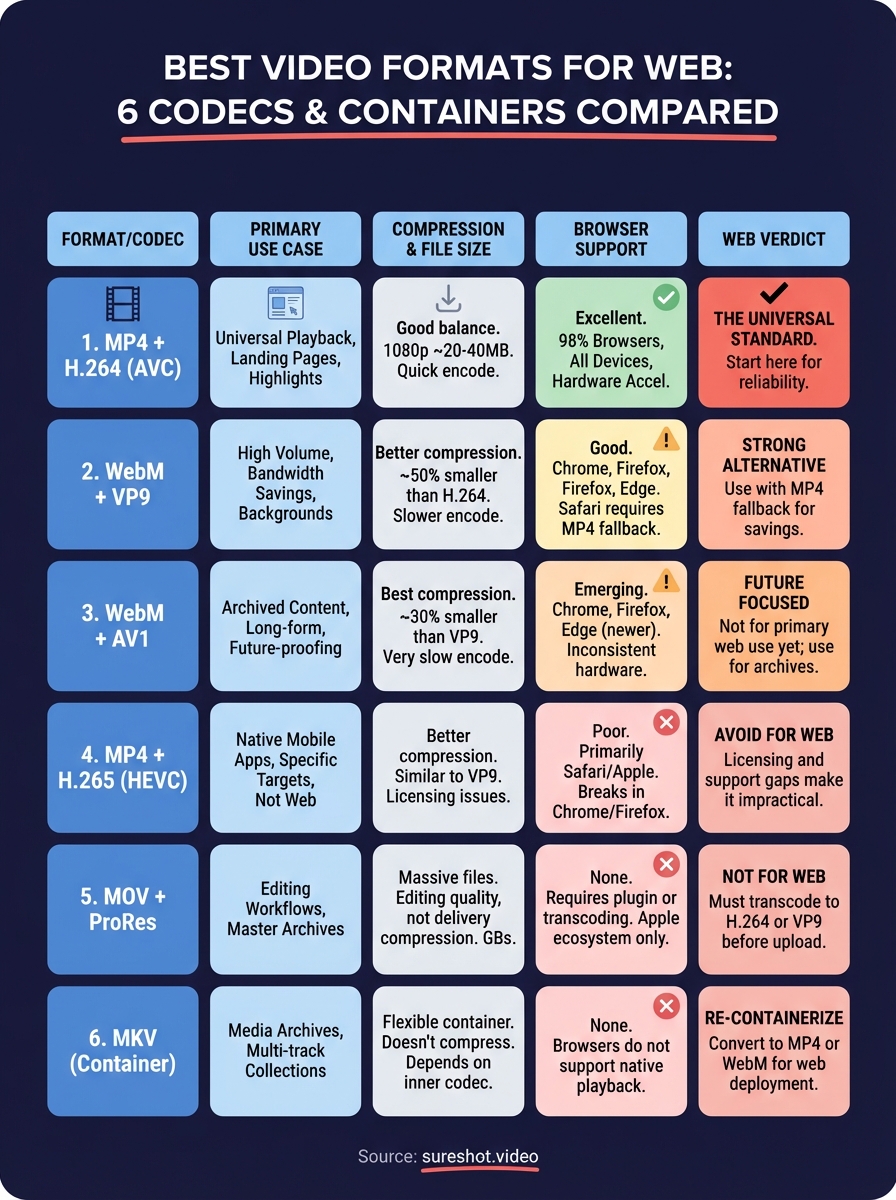
You now understand how six major codecs and containers perform for web delivery. The best video format for web comes down to your specific needs: MP4 with H.264 remains the universal choice when compatibility matters most, while WebM with VP9 offers significant file size savings if you're willing to maintain fallback files. Every other format serves specialised workflows rather than general web publishing.
Start with H.264 as your baseline format. Export at 1080p with 3,000 to 5,000 kbps bitrate, then test playback across the devices your audience actually uses. Add VP9 versions when bandwidth costs justify the encoding investment, and skip formats like ProRes or MKV entirely for public web deployment. Your format strategy should prioritise what your visitors can actually play.
At SureShot, we help event organisers collect and share user-generated video content from attendees. If you want a simpler way to capture, organise, and publish event footage, book a demo to see how the platform works.