

Phone & PC Guide: How to Make YouTube Shorts Step-by-Step
You want to create YouTube Shorts but you're not sure where to start. Maybe you've seen other creators rack up millions of views with quick vertical videos, and you're ready to join them. The problem is figuring out which tools to use, how to film properly, and what the upload process actually looks like.
Good news. Making Shorts is simpler than you think. You can create them directly on your phone using the YouTube app, or produce them on your computer with editing software before uploading. Both methods work. The key is understanding the basic requirements and following a clear process.
This guide walks you through everything step by step. You'll learn what you need before you start, how to record and upload Shorts on mobile, how to create them on your computer, and how to optimise them so people actually watch. By the end, you'll have a complete system for producing Shorts that connect with your audience.
What you need before you start
You don't need expensive equipment to start creating Shorts. The basics are simple, but you do need to check a few things before you record your first video. Getting these requirements right from the start saves you time and prevents upload issues later.
Your device and account
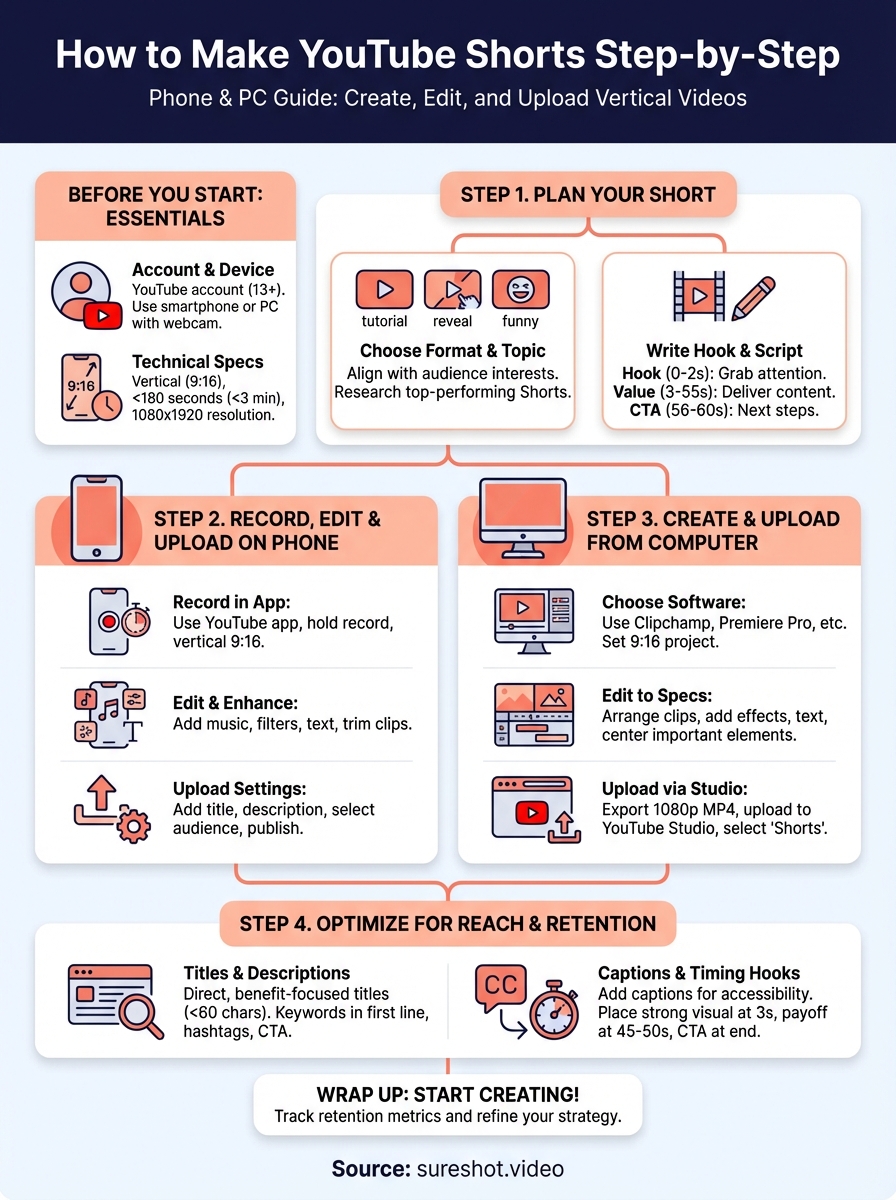
You need a YouTube account to upload Shorts. If you don't have one, create it through Google. You must be at least 13 years old to post content. For recording, use either your smartphone (iPhone or Android) or a computer with a webcam. Most modern phones work perfectly since they already shoot in high resolution.
Technical specifications
Your video must meet YouTube's Shorts requirements. Keep it under 180 seconds (3 minutes maximum). Shoot in vertical format with a 9:16 aspect ratio (portrait orientation). The recommended resolution is 1920 x 1080 pixels. Your file should be MP4 or MOV format and stay under 10MB if uploading through the mobile app. These specifications ensure YouTube recognizes your upload as a Short instead of a regular video.
Meeting these technical specs from the start means YouTube will automatically categorize your video as a Short.
Step 1. Plan your YouTube Short
Planning prevents you from wasting hours recording content that nobody watches. Before you hit record, you need to decide what your Short will accomplish and how you'll structure it. This step determines whether viewers swipe away in the first second or watch until the end.
Choose your format and topic
Pick a specific format that matches your content goals. Common formats include quick tutorials, before-and-after reveals, funny moments, product demonstrations, or behind-the-scenes clips. Your format should align with what your audience wants to see. Research what's working in your niche by watching top-performing Shorts in your category and noting their common elements. Don't copy them directly, but understand why they succeed. When learning how to make YouTube Shorts that perform well, format consistency helps build audience expectations and recognition.
Write your hook and script
Start with a strong hook in your first 2 seconds. This could be a bold statement, a surprising visual, or a direct question that creates curiosity. Your hook determines if viewers keep watching. After the hook, structure your content using this simple template:
Hook (0-2 seconds): Grab attention immediately
Value delivery (3-55 seconds): Provide the main content or payoff
Call-to-action (56-60 seconds): Tell viewers what to do next
Your first two seconds matter more than the rest of your Short combined.
Keep your script tight. Cut unnecessary words. Viewers scroll fast, so every second must deliver value or entertainment.
Step 2. Record, edit and upload Shorts on your phone
Your phone gives you the fastest path to creating and uploading Shorts. The YouTube mobile app includes built-in recording and editing tools that let you capture, enhance, and publish content in minutes. This method works best when you want to create spontaneous content or capture moments as they happen.
Record your Short in the YouTube app
Open the YouTube app on your smartphone and tap the plus (+) button at the bottom of your screen. When prompted, grant camera and microphone access if this is your first time creating a Short. Select the Create a Short option to launch the recording interface.
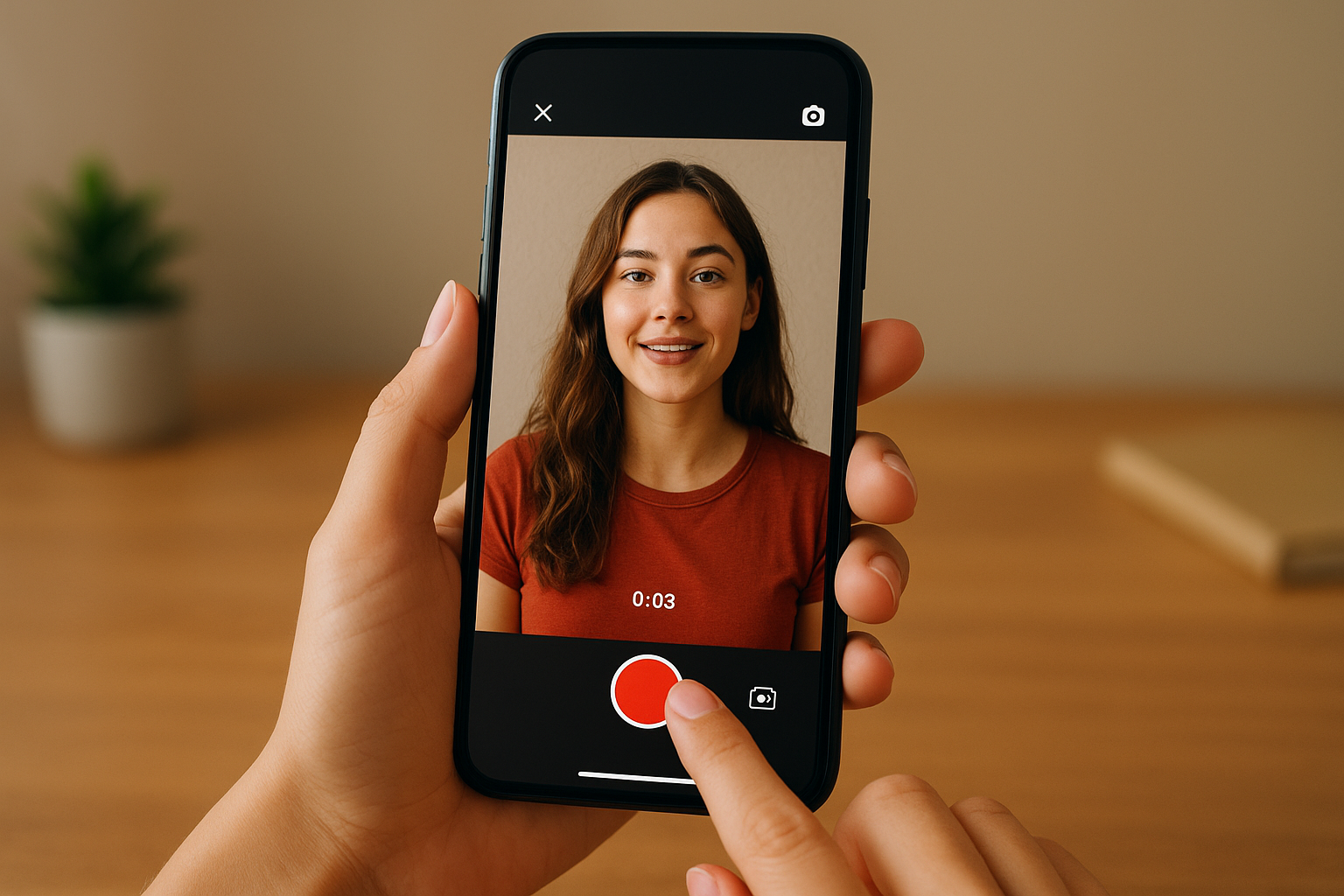
Hold the red record button to capture video. You can press it once to start recording and press again to stop, which lets you create multiple clips in sequence. The timer in the upper right corner shows your remaining time. Tap the camera roll icon to upload existing videos from your phone instead of recording new footage. Make sure you hold your phone vertically to maintain the correct 9:16 aspect ratio.
Recording multiple short clips and combining them often creates more dynamic content than one continuous take.
Edit and enhance your clip
After recording, tap the checkmark to move to the editing screen. Here you add the elements that make your Short stand out. Tap Add music to browse YouTube's audio library and select a soundtrack that matches your content. The app automatically syncs the music to your video length.
Apply filters by tapping the filter icon to adjust the visual tone of your footage. Add text overlays by selecting the text tool, then type your message and choose its duration on screen. Position text carefully so it doesn't cover important visual elements. Use the trim tool to cut unwanted sections from the beginning or end of your clips.
Upload with proper settings
Tap Next when you finish editing. This brings you to the upload details screen where you optimise your Short for discovery. Write a clear, descriptive title that includes relevant keywords without clickbait. Add a detailed description that explains what viewers will see. Select the audience setting (whether your content is made for kids or not).
Choose a thumbnail by tapping Edit on your video preview. Select a clear, engaging frame that represents your content accurately. You can add text and filters to your thumbnail to make it stand out. Finally, tap Upload Short to publish your content. YouTube processes your video and makes it live within minutes.
Step 3. Create and upload Shorts from your computer
Creating Shorts on your computer gives you more editing control and access to professional editing tools. This method works best when you want to repurpose existing footage, add advanced effects, or combine multiple video sources. Learning how to make YouTube Shorts on your desktop expands your creative options beyond what mobile apps offer.
Choose your video editing software
Pick a video editor that supports vertical video and exports in the correct format. Microsoft Clipchamp provides free templates designed specifically for Shorts, including pre-built 9:16 layouts. Other options include Adobe Premiere Pro, DaVinci Resolve, or Final Cut Pro for advanced editing. Your software must let you set the aspect ratio to 9:16 and export in MP4 or MOV format at 1080p resolution.
Edit your video to Shorts specifications
Import your video clips into your chosen editor and set your project settings to 1080 x 1920 pixels (vertical). Arrange your clips on the timeline, keeping your total length under 180 seconds. Add text overlays, transitions, and background music to enhance your content. Position all important visual elements in the centre safe zone where they won't get cut off by mobile interfaces.
Desktop editing lets you layer multiple video tracks, add complex animations, and fine-tune audio in ways mobile apps can't match.
Export your finished video at 1080p resolution in MP4 format. Save it to your computer's hard drive.
Upload through YouTube Studio
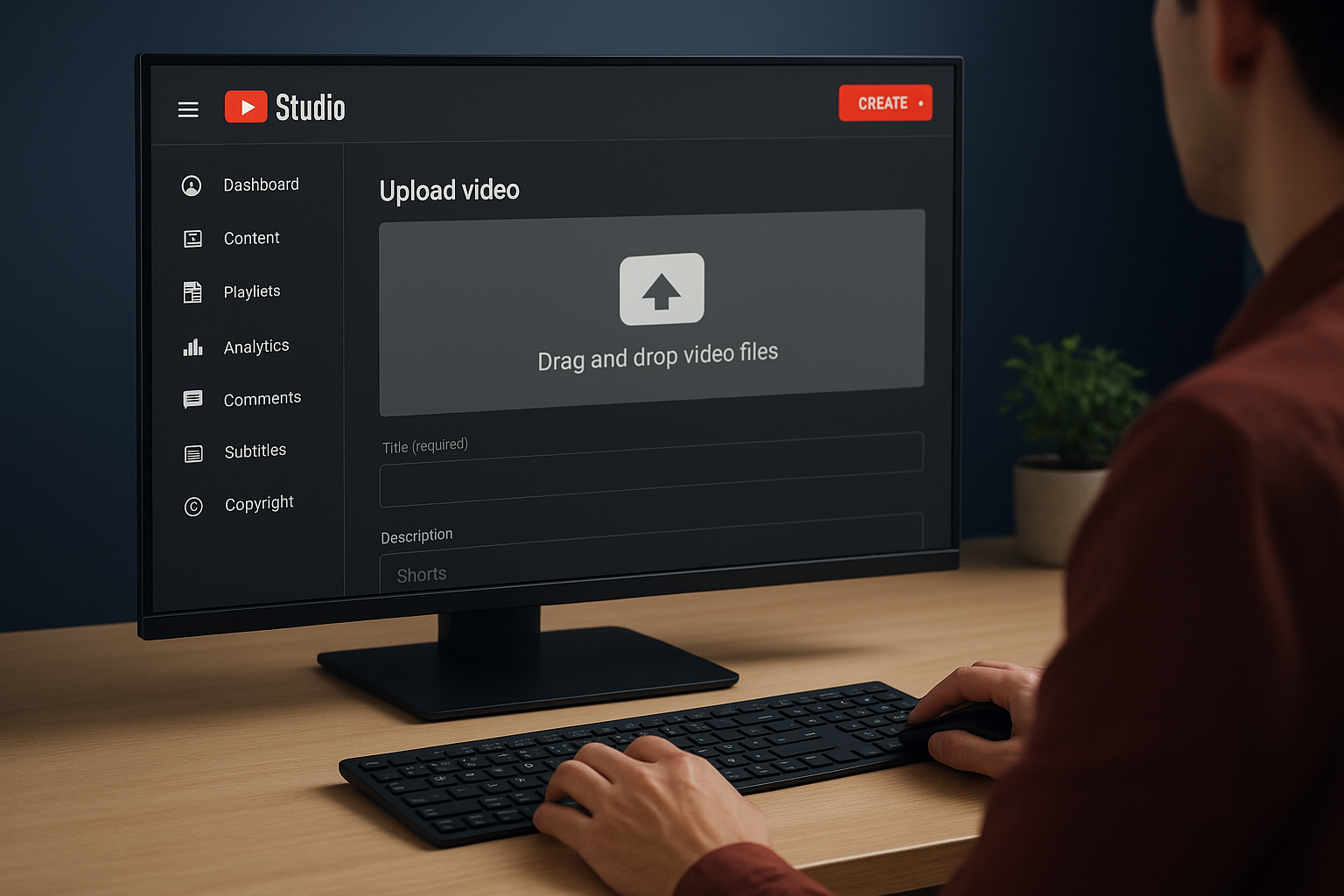
Open your web browser and navigate to YouTube Studio. Click the Create button and select Upload videos. Drag your exported Short into the upload area. In the details section, add your title and description, then scroll down and check the box that says "This video is a Short" under the Shorts settings. Add a thumbnail, select your audience settings, and click Publish to make your Short live.
Step 4. Optimise Shorts for reach and retention
Creating your Short is only half the work. The other half involves optimising it so YouTube's algorithm shows it to more people and viewers actually watch it through to the end. Understanding how to make YouTube Shorts that perform well requires attention to specific optimization elements that directly impact your reach and retention metrics.
Write titles and descriptions that drive clicks
Your title should be direct and benefit-focused. Start with an action word or compelling statement that tells viewers exactly what they'll get. For example, "Fix Your Posture in 30 Seconds" works better than "Posture Tips." Keep titles under 60 characters so they don't get cut off on mobile screens.

Descriptions need relevant keywords in the first line because that's what appears before the "more" button. Include 2-3 hashtags that describe your content category. Add a call-to-action asking viewers to subscribe or check your other content. Structure your description using this template:
First sentence: Main benefit or hook
Second sentence: Brief context or explanation
Third line: Relevant hashtags (#shorts #category #topic)
Final line: Call-to-action
The first three seconds and your title together determine if someone watches your Short or scrolls past it.
Add captions and timing hooks
Upload captions directly through YouTube Studio after publishing your Short. Captions increase watch time by making your content accessible to viewers watching without sound, which is common on mobile devices. Studies show videos with captions see higher completion rates and broader reach.
Build retention with strategic timing. Place your strongest visual or statement at the 3-second mark to keep viewers past the initial scroll decision. Add a surprise element or payoff at the 45-50 second mark to reward viewers who stayed. Position your call-to-action in the final 5 seconds when viewers are most likely to take action after consuming your content.
Wrap up and next steps
You now know how to make YouTube Shorts from start to finish. You've learned the technical requirements, how to record and edit on your phone, how to create Shorts on your computer, and which optimization tactics drive the most views. Each method has its place depending on your workflow and content needs.
Start by creating your first three Shorts using the mobile app method. This gives you immediate practice with the format and helps you understand what resonates with viewers. Track your retention metrics in YouTube Studio after 48 hours to see which videos keep people watching. Double down on the formats and topics that perform best.
If you're organising events and want to multiply your video content creation, consider how user-generated content can fuel your Shorts strategy. Attendees capture authentic moments that make compelling Short-form videos. Book a demo with SureShot to see how you can collect and use attendee videos at scale for your events and social channels.