
Creative Commons License Chooser: How to Select and Apply
You created something valuable and want to share it with the world. Maybe it's a video tutorial, a photo collection, or written content. But you're stuck on how to let others use your work without losing control completely. Traditional copyright is too restrictive. Giving up all rights feels risky. You need something in between.
Creative Commons licenses give you that middle ground. The CC license chooser is a free tool that helps you pick the right license in minutes. It asks two simple questions about your preferences, then generates the exact license and code you need. No legal expertise required.
This guide walks you through the entire process. You'll learn what each Creative Commons license means, how to use the chooser tool, and how to properly apply your chosen license to any content. By the end, you'll know exactly how to share your work on your terms.
Understand Creative Commons license options
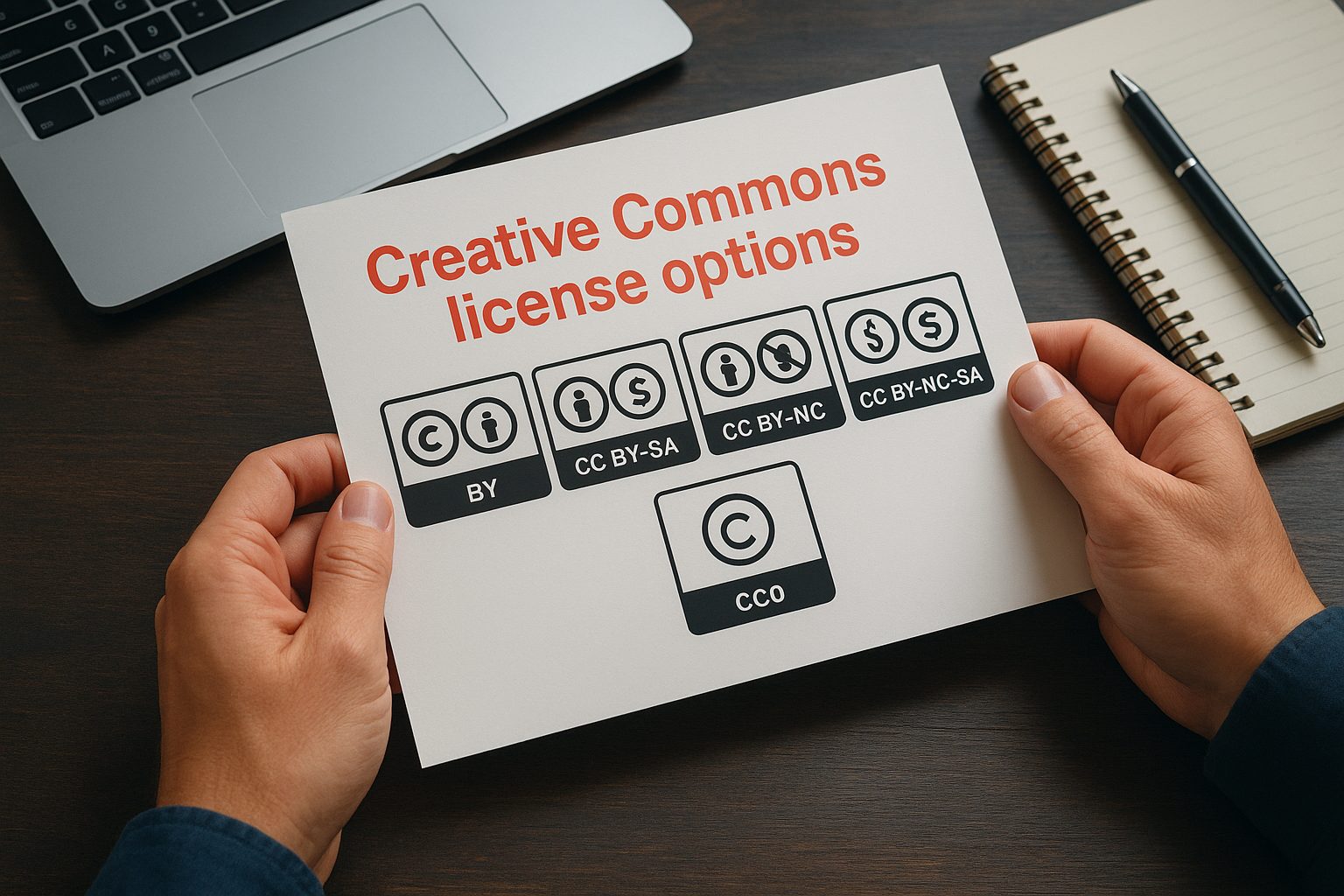
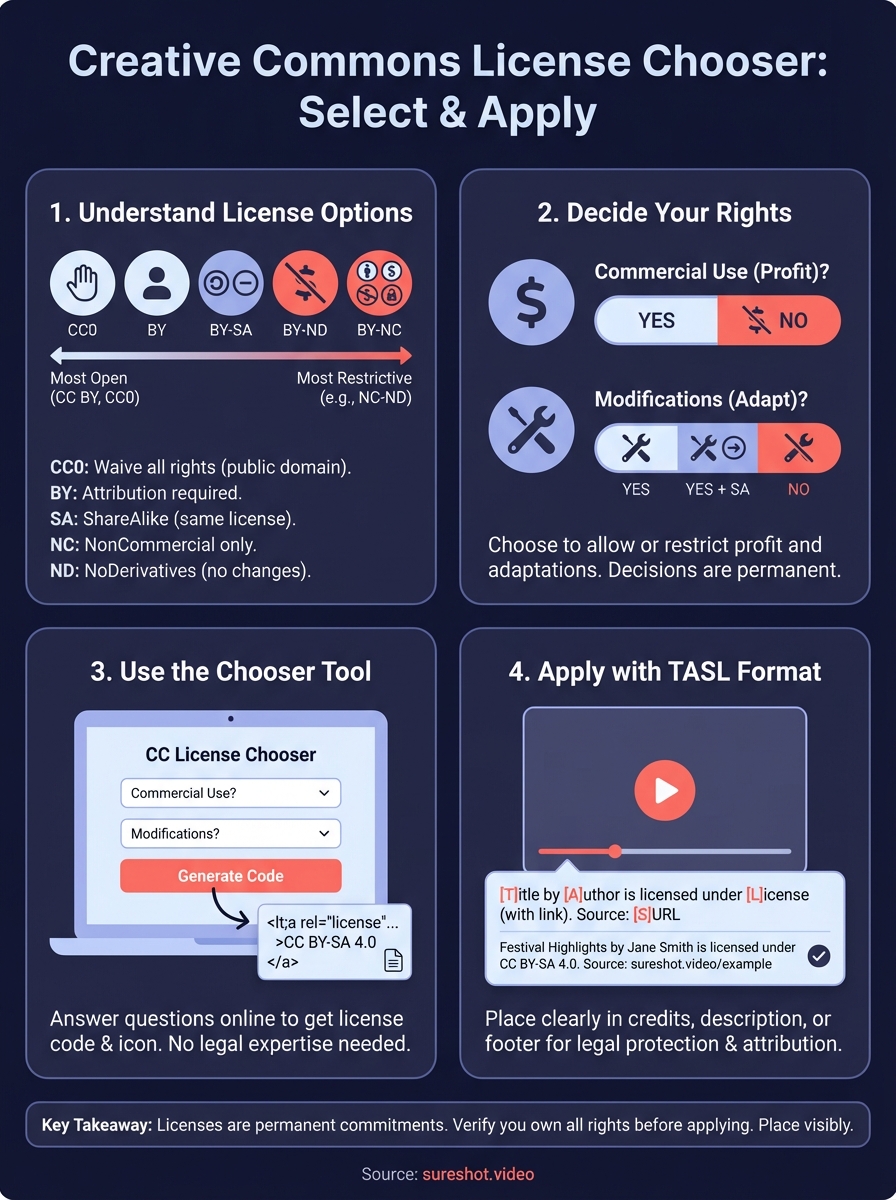
Creative Commons offers six main licenses and one public domain tool (CC0). Each license allows different types of use, from full freedom to specific restrictions. You need to understand these options before you can pick the right one for your work. The licenses range from most open (CC BY) to most restrictive (CC BY-NC-ND).
The six standard CC licenses
All Creative Commons licenses require attribution (BY), meaning users must credit you as the creator. Beyond that, you can add three types of restrictions: ShareAlike (SA), NonCommercial (NC), and NoDerivatives (ND). CC BY gives users the most freedom to remix, adapt, and even sell your work as long as they credit you. CC BY-SA requires derivative works to use the same license. CC BY-ND allows sharing but no modifications. CC BY-NC permits use except for commercial purposes. Combinations like CC BY-NC-SA and CC BY-NC-ND add multiple restrictions to protect your interests.
The NonCommercial restriction means others cannot profit from your work without permission, which matters if you plan to monetize later.
CC0 public domain dedication
CC0 takes a different approach. You waive all copyright and related rights to your work when you use this tool. Anyone can use your content for any purpose without asking permission or giving you credit. This option works best when you want maximum distribution and don't care about attribution. Scientists often use CC0 for research data. The creative commons license chooser includes this option alongside the six standard licenses, giving you complete control over how you share.
Step 1. Decide what rights you want to grant
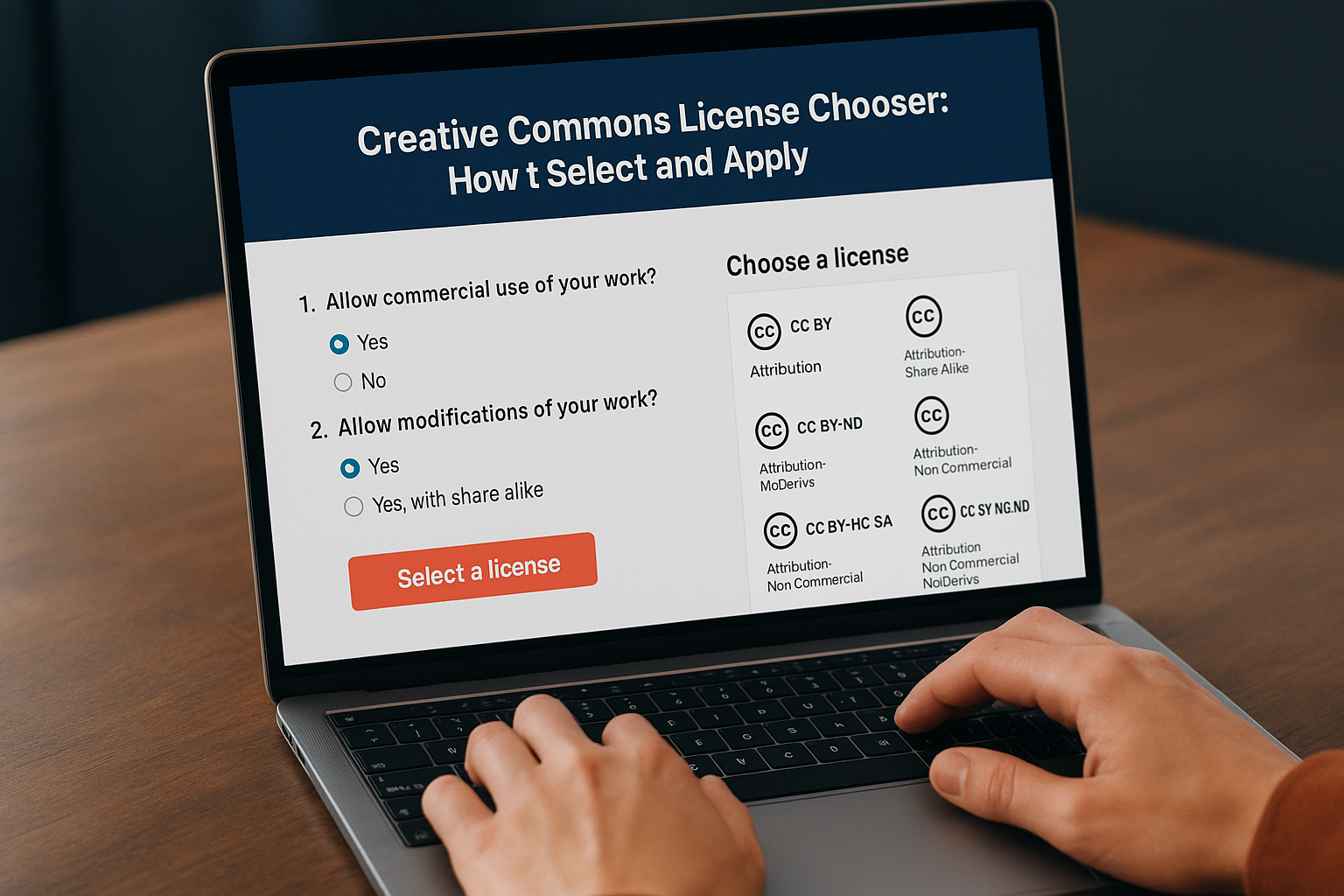
Before you visit the creative commons license chooser, you need to answer two fundamental questions about your work. These decisions determine which license the tool recommends. The first question asks whether you want to allow commercial use of your content. The second question focuses on whether you permit modifications and derivative works.
Ask yourself two key questions
Start by considering if others should be able to profit from your work. Commercial use means someone could feature your video in an advertisement, sell prints of your photo, or include your content in a paid course. If you want to reserve commercial rights for yourself or plan to monetize later, choose to restrict commercial use. Many creators pick this option to maintain control over how brands and businesses use their content.

Allowing derivative works means others can remix, transform, or build upon your content to create something new.
Next, decide if you want people to modify your work. This includes editing videos, cropping photos, translating text, or creating adaptations. The choices are: yes (allow adaptations), yes but with ShareAlike (adaptations must use the same license), or no (no modifications allowed). Consider what makes sense for your content type. Videos shared at festivals often benefit from wider distribution through remixes, while certain artistic works might require protection from changes that could misrepresent your vision.
Step 2. Use the Creative Commons license chooser
Once you know what rights you want to grant, you can visit the creative commons license chooser and get your license in minutes. The tool lives on the Creative Commons website and requires no registration or payment. You simply answer a few questions through an interface that guides you to the right license. The entire process takes less than five minutes from start to finish.
Access the official chooser tool
Navigate directly to the Creative Commons website to find the license chooser page. You'll see a clean interface with two dropdown menus and checkboxes. The tool works on any device including phones, tablets, and computers. No special software or technical knowledge is required to use it. Creative Commons hosts this tool as a free public service for anyone who wants to license their creative work.
Answer the licensing questions
The chooser presents you with two main decisions in simple language. First, select whether you want to allow commercial uses of your work from the dropdown menu. Choose "Yes" if businesses and individuals can use your content for profit, or "No" to restrict commercial use. Second, indicate whether you permit modifications. Pick "Yes" for full adaptation rights, "Yes, as long as others share alike" to require the same license on derivatives, or "No" to prohibit modifications entirely.
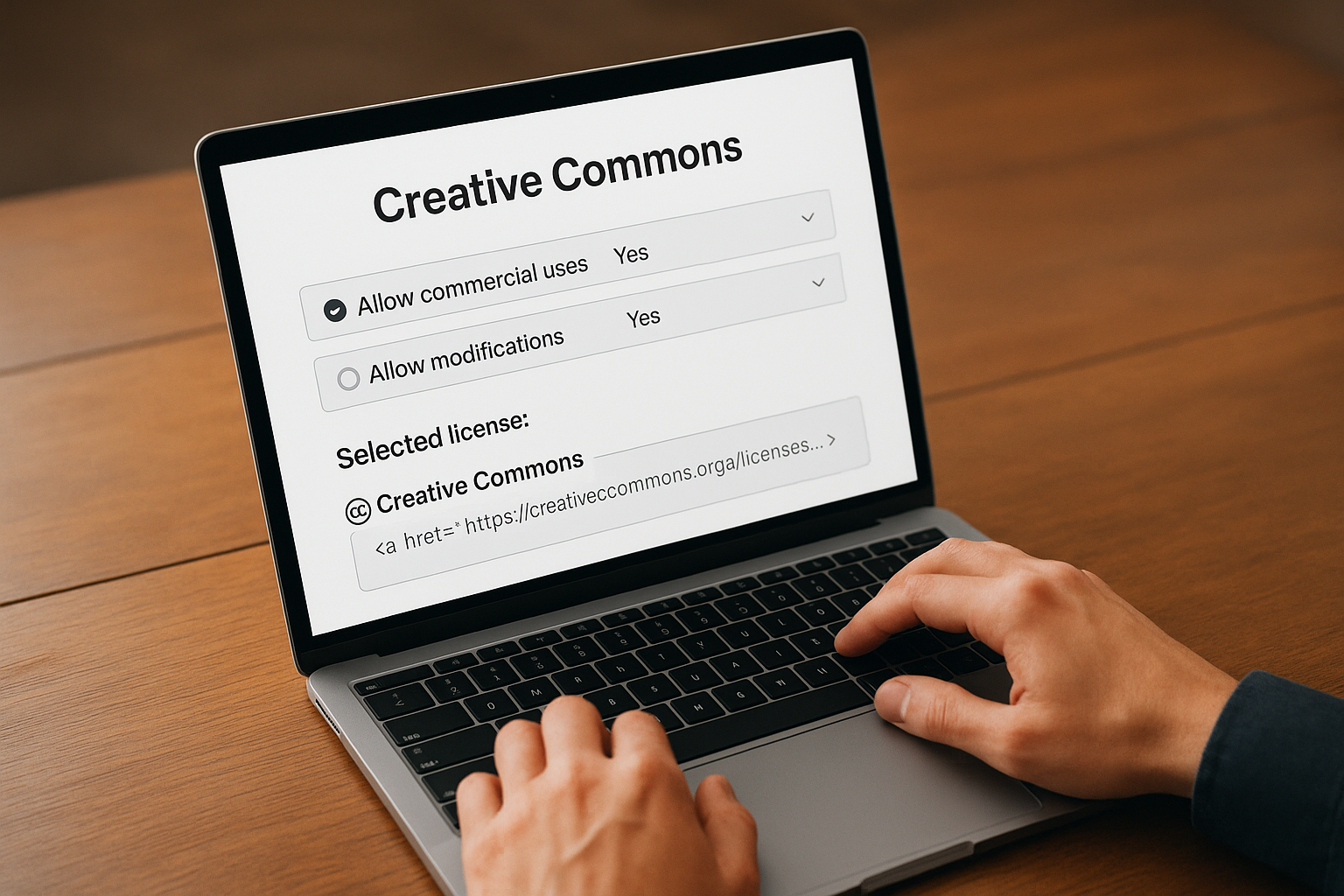
The tool automatically generates the correct license code based on your selections, eliminating guesswork about legal terminology.
Copy your license code and information
After you answer both questions, the chooser displays your selected license with its official name and icon. You'll see HTML code in a gray box that you can copy directly to your website. The tool also provides plain text and a clickable icon version. Copy whichever format works best for where you plan to share your content.
Step 3. Apply your license to your content and videos
Applying your license properly ensures others understand how they can use your work. The creative commons license chooser gives you the code, but you need to place it where people can see it. For videos, add the license information in your description, credits, or an opening/closing title card. On websites, put it in your footer, copyright notice, or directly on the page with your content.
Mark your work with TASL attribution
Use the TASL approach to mark your content properly, whether you're the creator or incorporating others' work. TASL stands for Title, Author, Source, and License. This method gives users complete information about rights and attribution requirements. Here's how to structure your attribution statement:
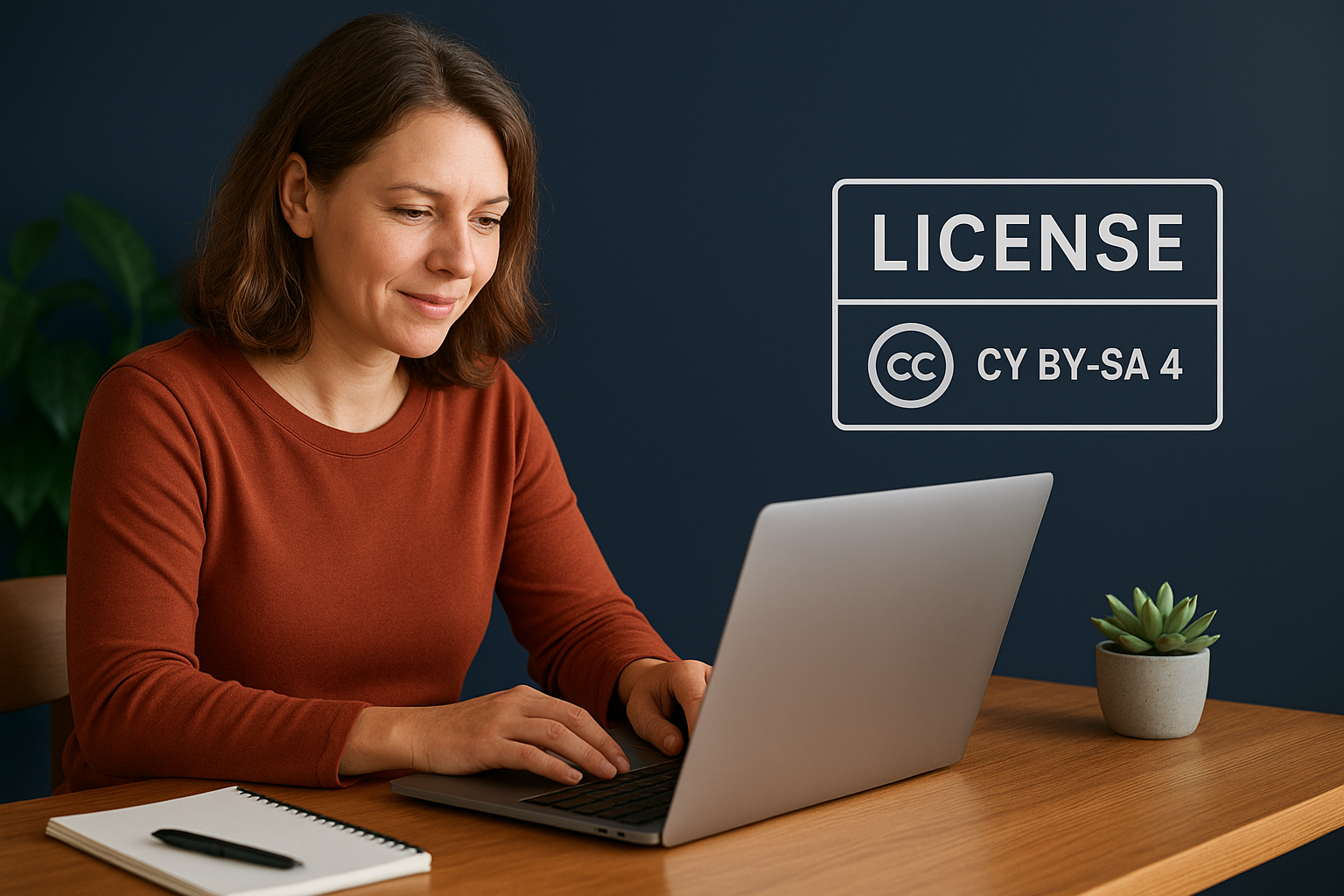
[Title] by [Author Name] is licensed under [License Name with link]
Source: [URL to original work]
For your own video content, a complete marking looks like this:
Festival Highlights 2024 by Jane Smith is licensed under CC BY-SA 4.0
https://creativecommons.org/licenses/by-sa/4.0/
The TASL format protects you legally and makes it easy for others to share your work correctly.
Display the license in multiple locations
Place your license information in multiple visible spots for maximum clarity. On video platforms, include it in the description field and consider adding a text overlay in the first or last few seconds. For website content, add the license statement in your site footer with the CC icon. If you manage event content across platforms, maintain consistent licensing across all channels. Add the license details to file metadata when possible, so the information stays with your content even when downloaded or shared elsewhere.
Step 4. Avoid common mistakes with CC licensing
Creative Commons licenses come with permanent commitments you cannot reverse once applied. Understanding these limitations prevents legal issues and protects your rights. Many creators make preventable errors when using the creative commons license chooser that could limit future opportunities or create conflicts. These mistakes often stem from rushing without considering long-term implications.
Don't license work you don't fully own
You must own or control the copyright to everything in your work before applying a CC license. This includes background music, stock footage, graphics, and elements created by others. If your event video contains copyrighted music without permission, you cannot license the entire video under Creative Commons. Instead, clearly mark which portions you created and which have different licenses. Videos mixing licensed content require detailed attribution showing what license applies to each element.
Once you apply a Creative Commons license to work, you cannot revoke it or change to a more restrictive license later.
Verify you can meet ShareAlike requirements
The ShareAlike condition creates binding obligations for derivative works. If you use CC BY-SA content in your video, you must license your entire final work under the same or compatible license. This restriction limits options if you later want to add commercial music or partner with brands. Check compatibility before mixing different ShareAlike licenses, as some combinations create legal conflicts.
Key takeaways
The creative commons license chooser simplifies sharing your work on your own terms. You answer two questions about commercial use and modifications, copy the generated code, and apply it to your content using the TASL format. Remember that CC licenses are permanent, so verify you own all rights before licensing any work. Place your license information in multiple visible locations to ensure proper attribution and legal protection.
When you collect user-generated videos from events, understanding licensing becomes even more important. You need clear rights to use attendee content for promotion and archival purposes. If you organize events and want a streamlined system for managing video content with proper licensing built in, book a demo with SureShot to see how it works.